
Get more of your TikToks onto YouTube
YouTube is slower than your other platforms right now. Here’s why, and every way to get more videos up today: with EverySqueeze, by hand, with an assistant or with an AI agent.
 EverySqueeze
YouTube
Automatic, but every creator shares Google’s daily upload allowance, so it can be days behind.
By hand, by your assistant or by an AI agent, as many as YouTube lets your channel upload.
Why YouTube is slower right now
Every EverySqueeze creator shares one daily YouTube upload allowance from Google, and lately it’s been used up every day. That’s why YouTube can be days behind. Facebook, Instagram and Pinterest aren’t slowed down by it at all.
Nothing is lost
A waiting YouTube post keeps its place. It isn’t a failed post, and you don’t need to do anything.
Fair turns
When room opens up, the creator who has waited longest goes next, so nobody gets skipped.
More is on the way
We’ve asked Google to raise the allowance, and we’ll let you know as soon as they do.
In “Schedule” you’ll see how far behind it is for you, in a line like this:
“YouTube is about 3 days behind for you.”
The times on your YouTube posts are the real times they can go out.
Get the most out of EverySqueeze
A few habits get your best videos onto YouTube first.
“Post now” your best videos
In “Composer”, pick “Post now” and press “YouTube” on the video, or press “Post now” on its YouTube post in “Schedule”. It goes straight up as long as there’s allowance left that day. It doesn’t wait in line.
Do it early in the day
The shared allowance fills up as the day goes on, and it resets at midnight Pacific time. Morning is your best shot.
Know your own daily limit
Each account can send a set number of YouTube uploads a day through EverySqueeze, and “Post now” counts toward them. Once yours are used, post the extras yourself (next section).
“Move to front”
Press “Move to front” on any waiting YouTube post in “Schedule” and it becomes your next one. It changes the order, not how many go out.


Post extra videos yourself
Uploading in YouTube Studio or the YouTube app doesn’t use the shared allowance at all. Set it up once, and each extra video takes a couple of minutes.
-
Turn on Google Drive backup
In “Settings” > “Accounts & platforms”, press “Connect Google Drive”. From then on, each new TikTok lands in your own Drive, in EverySqueeze Backups / @handle / month, named with its caption, usually within an hour of posting. It backs up new videos from the day you connect.
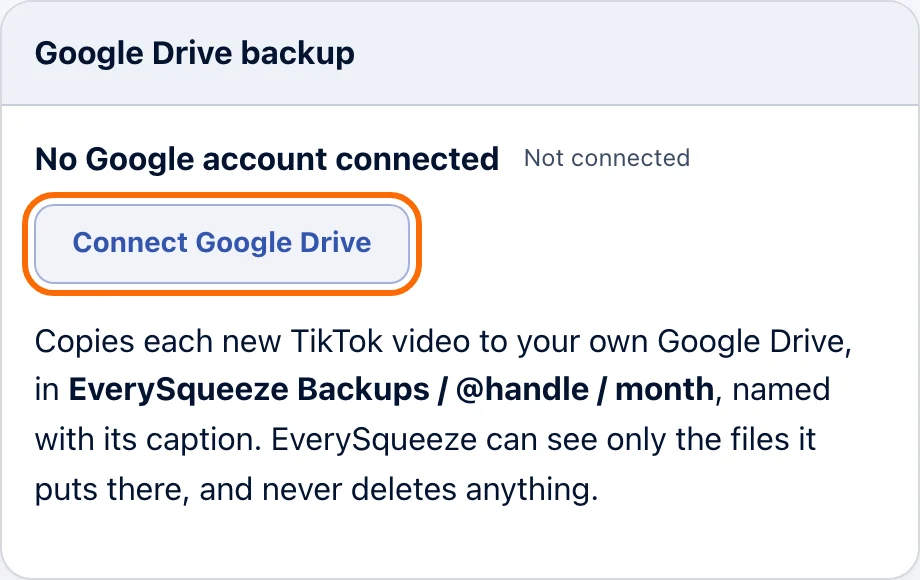
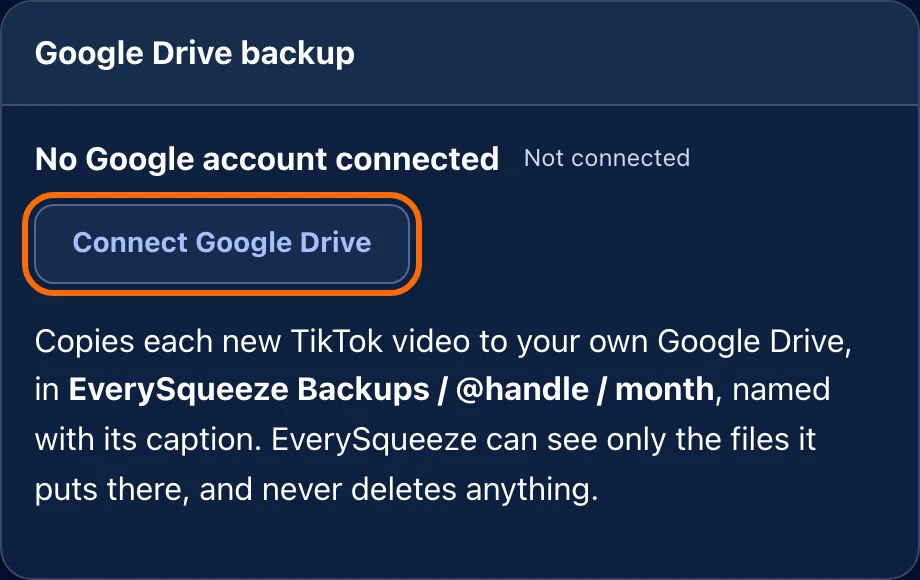
Settings > Accounts & platforms > Google Drive backup.
Watch: Connect YouTube, Pinterest and Google Drive backup (opens YouTube in a new tab) -
Pick the videos that would wait longest
In “Schedule”, the YouTube posts furthest out are the best ones to do by hand. Pick videos that already have a YouTube post there, so you can take it off in step 6.
-
Copy the video’s link
In “Composer”, check the product on the video is right, then press “Copy Amazon link” (“Copy link” in the phone app). The link already has your tracking ID. If you set your own link for that video, the button says “Copy my link”.
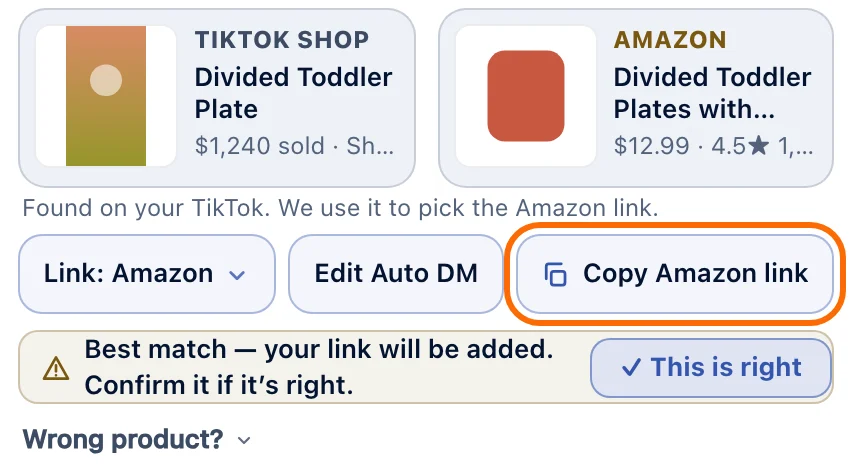
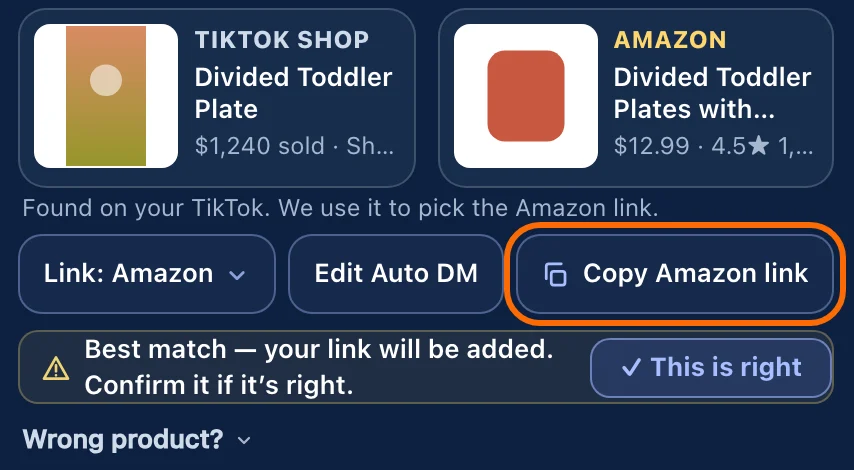
On the video’s card in “Composer”. -
Upload it in YouTube Studio or the YouTube app
Open the video from your Drive and upload it to your channel. Give it a short title from the caption (YouTube allows up to 100 characters; leave links out of the title). Then fill in the description in this order:
Description templateSwap the highlighted parts[YOUR LINK] [YOUR TIKTOK CAPTION, WITHOUT ITS HASHTAGS] #Ad [YOUR HASHTAGS] As an Amazon Associate I earn from qualifying purchases.Most TikToks go up as Shorts (vertical or square, up to 3 minutes). YouTube doesn’t make links in a Short’s description clickable, but put yours in anyway, the same way EverySqueeze does. More about Shorts and links.
-
Set the disclosures
- #Ad as the first hashtag.
- End with “As an Amazon Associate I earn from qualifying purchases.” If the link isn’t an Amazon link, end with “This video contains paid promotion.” instead.
- Turn on YouTube’s paid promotion setting for the video. In YouTube Studio on a computer it’s under “Show more”, in “Paid promotion”.
- Audience: not made for kids.
-
Take it off your Schedule
Back in EverySqueeze, find that video’s YouTube post in “Schedule” and press “Cancel”. EverySqueeze doesn’t check YouTube for videos you uploaded yourself, so this is what stops it going up twice. When you cancel it, EverySqueeze won’t queue that video for YouTube again.


“Cancel” on that video’s YouTube post only. Its other platforms stay scheduled.
With an assistant
A VA can do the whole routine above every day, without ever having your passwords.
Invite them to your YouTube channel
In YouTube Studio, go to “Settings” > “Permissions” > “Invite” and add their own Google account as an “Editor”. Editors can upload and publish, but can’t delete your published videos or change who has access.
Give them EverySqueeze access
Invite them with VA mode, so they can check products and copy links in “Composer” with their own sign-in.
Watch: How to invite an assistant with VA mode (opens YouTube in a new tab)Share the backups folder
Only the account owner can connect Google Drive. Once it’s on, share the EverySqueeze Backups folder in Google Drive with your assistant’s Google account.
Never share your YouTube, Google or EverySqueeze password with anyone. Invites give access you can take back any time.
With an AI agent
An AI agent that can use a browser can do the YouTube Studio uploads for you. These prompts are the setup our own team uses every day, cleaned up. Press “Copy”, swap the highlighted parts, and paste.
Do every sign-in yourself, and never type a password into the agent’s chat. AI agents can make mistakes, so watch the first batch and check a few videos after each one. EverySqueeze isn’t connected with any of these tools.
Muse
Muse is an AI assistant that remembers a workflow and runs it in YouTube Studio. Before your first batch:
- Invite the Google account Muse will use as an “Editor” on your channel (YouTube Studio > “Settings” > “Permissions”).
- Connect Muse to that account’s Google Drive and YouTube Studio. Do the first sign-in yourself.
- Turn on Google Drive backup in EverySqueeze (step 1 above). If Muse uses your assistant’s Google account, share the EverySqueeze Backups folder with it.
Then send Muse this once:
Set up and remember my TikTok to YouTube workflow.

1. Make a folder called "TikTok to YouTube" in my Google Drive, with a folder called "Done" inside it. Use only these folders for these uploads. Never delete anything in them.
2. Upload in YouTube Studio to my channel [CHANNEL NAME]. Confirm the channel with me before the first upload, and check it again at the start of every batch.
3. Each day I'll copy videos into that folder with a number at the start of the file name, like "1 my dog loves this bed.mp4". The rest of the file name is the caption. I'll send links with the same numbers. Match videos and links by number only, and only use the files in "TikTok to YouTube" itself, never the ones in "Done".
4. If a number, file or link is missing, or a file is there twice, skip that video and tell me. Never make up a link, swap links or change a link in any way.
5. Title: from the caption, 100 characters at most, no links.
6. Description, in this order: my exact link, the caption, hashtags with #Ad first, then "As an Amazon Associate I earn from qualifying purchases." If the link isn't an Amazon link, end with "This video contains paid promotion." instead. Don't add prices, deals or claims about the product.
7. On every video: audience "not made for kids", paid promotion on, the AI or altered content question "No" (my videos are real footage; if I say a video has realistic AI-made or AI-changed parts, answer "Yes"). Never upload the same video twice.
8. If YouTube Studio shows a copyright claim or any other problem, don't publish that video. Stop and tell me.
9. Publish at the timing I give you. Afterwards, open Content and check each video's title, time, visibility and link. Then move each uploaded file into "Done", so the next batch starts clean.
10. Send me a report with each video's YouTube link and status. Tell me right away about a missing link, a failed upload, a copyright problem or a lost connection.Every day after that:
- Open EverySqueeze Backups in Google Drive and copy (don’t move) the videos you want into TikTok to YouTube.
- Put a number at the start of each copy’s file name: 1, 2, 3 and so on.
- In EverySqueeze, press “Copy Amazon link” on each video in “Composer” and paste the links into the daily prompt below, with the same numbers.
- Send the daily prompt. When Muse’s report is in, cancel the YouTube posts of the videos that went up in “Schedule”. Leave anything it skipped there.
Today's TikTok to YouTube batch. Same rules as always: match by number only, never change a link, check the channel first.

1 [LINK FOR VIDEO 1]
2 [LINK FOR VIDEO 2]
3 [LINK FOR VIDEO 3]

One now and one every hour.“One now and one every hour” (or every half hour) works better than exact times.
Any other browser agent
Agents that can use a web browser for you work too. Agents differ in whether they can open Google Drive and pick files to upload, so try one video first.
Please upload my TikTok videos to my YouTube channel in YouTube Studio. I'm already signed in. If anything asks for a password or a sign-in, stop and tell me. Never type a password.

Channel: [CHANNEL NAME]. Before the first upload, check that YouTube Studio is on this channel. If it isn't, stop and ask me.

Videos: in my Google Drive folder "[FOLDER NAME]". Each file name starts with a number, like "1 my dog loves this bed.mp4". The rest of the file name is the caption.

Links, matched to the videos by number only:
1 [LINK FOR VIDEO 1]
2 [LINK FOR VIDEO 2]
3 [LINK FOR VIDEO 3]

Rules:
- If a number, file or link is missing, or a file is there twice, skip that video and tell me. Never make up a link, swap links or change a link in any way.
- Title: from the caption, 100 characters at most, no links.
- Description, in this order: the exact link, the caption, hashtags with #Ad first, then "As an Amazon Associate I earn from qualifying purchases." If the link isn't an Amazon link, end with "This video contains paid promotion." instead. Don't add prices, deals or claims about the product.
- On every video: audience "not made for kids", paid promotion on, the AI or altered content question "No" (my videos are real footage; if I say a video has realistic AI-made or AI-changed parts, answer "Yes").
- Never upload the same video twice. Don't delete or change anything else on my channel or in my Drive.
- Only use the files in that folder itself, not in folders inside it. After a video is uploaded and checked, move its file into the "Done" folder inside it (make it if it isn't there).
- If YouTube Studio shows a copyright claim or any other problem, don't publish that video. Stop and tell me.
- Timing: [ONE NOW AND ONE EVERY HOUR].

When you're done, open Content and check each video's title, time, visibility and link. Then send me a list with each video's YouTube link and status, and anything you skipped and why.When the agent’s list is in, cancel the YouTube posts of the videos that went up in “Schedule”, so nothing goes up twice. Leave anything it skipped there.
Your daily checklist
Tick through it each day. It doesn’t save anything; it’s just here to help.
Questions
Will a video go up twice?
Only if EverySqueeze also posts it. EverySqueeze doesn’t check YouTube for videos you uploaded yourself, so press “Cancel” on that video’s YouTube post in “Schedule”. If you’re an assistant, tell the account owner which videos went up so they can cancel them.
What if a video has no link?
“Copy Amazon link” shows on the card in “Composer” once the video has an Amazon product (or your own link). If it has none, pick the product on the card first. If there’s still no link, you can post it without one: keep #Ad and end the description with “This video contains paid promotion.” An AI agent should skip a video with a missing link and tell you, never make one up.
YouTube says there’s a copyright problem
That’s usually the music. Don’t publish that one; pick a different video. An AI agent should stop and tell you rather than publish it.
Is it a Short or a regular video?
A vertical or square video up to 3 minutes goes up as a Short, which is most TikToks. Links in a Short’s description show as plain text, not a tap-able link. Longer videos are regular videos, where the link is clickable. YouTube Shorts and links in the description.
Is there a limit when I upload myself?
Not EverySqueeze’s. YouTube has its own daily upload limit for each channel. If YouTube Studio says you’ve reached it, stop for the day.
Why don’t older videos show up in my Drive?
Google Drive backup copies new TikToks from the day you connect it. Older videos aren’t in the folder.
Where can I read more about the YouTube limits?
YouTube daily upload allowance used up and YouTube daily limit in the Help center.
Stuck on a step? Ask in Discord, use Report a problem in the app, or email support@everysqueeze.com.